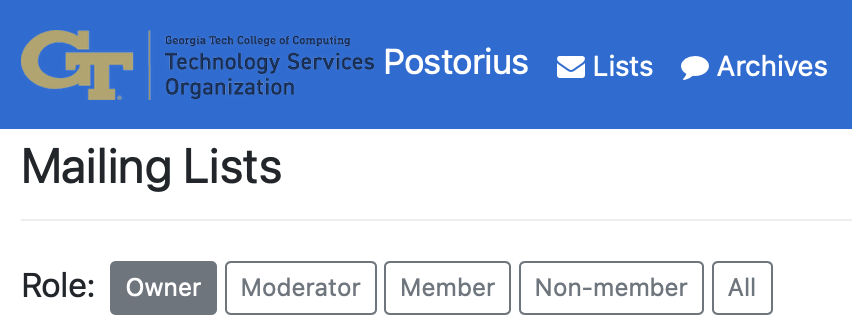
TSO offers a Mailman mailing list service to manage e-mail lists that end in @cc.gatech.edu. To use the service and ensure a successful user experience, you are required to do the following:
- Login to Mailman
- Add your email aliases
- Configure your list settings
Logging in to Mailman
- Navigate to mailman.cc.gatech.edu.
- Click 'Sign In' in the top right of the main Mailman webpage.
- On the login page, click the 'GT LOGIN' button.
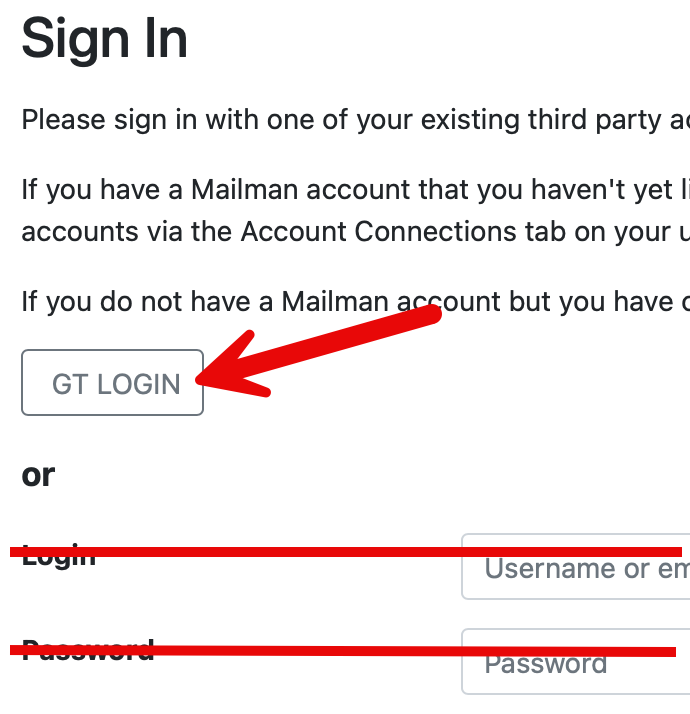
- Log in using your GT username and password.
- After you are 'successfully signed in', you'll need to add your email aliases.
Adding your email aliases
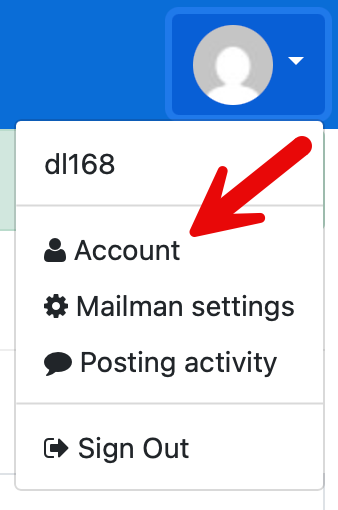
After logging in to mailman.cc.gatech.edu, open the user account menu in the top right and select 'Account'.
- Select the 'E-mail Addresses' tab along the top.
- In the 'Email address' field, add any other email aliases that you have used for mailing lists (i.e. gburdell@cc.gatech.edu or george.burdell@cc.gatech.edu) and click the 'Add E-mail' button. Repeat until all aliases have been added.
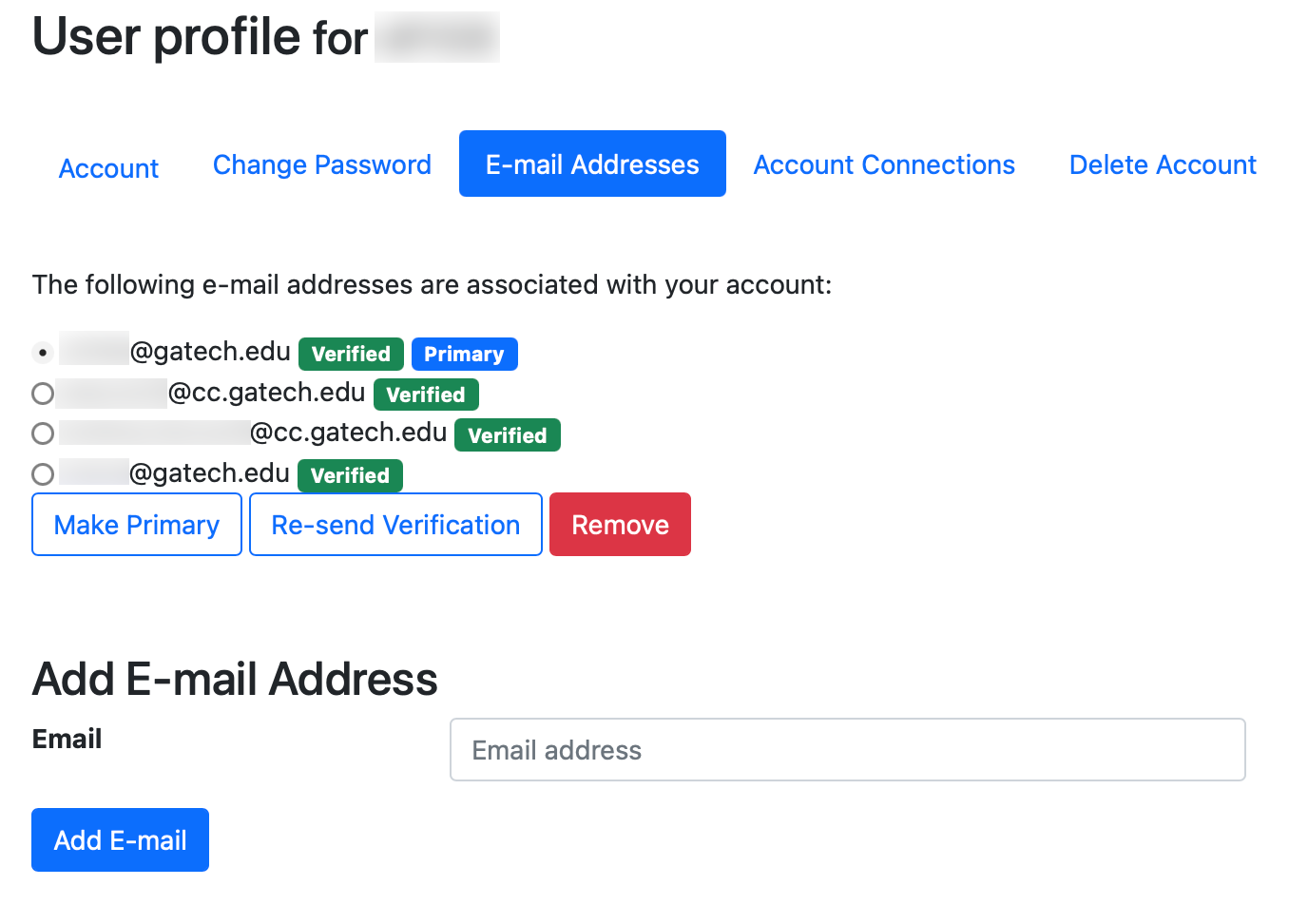
- An email will be sent to each alias to verify ownership.
- After this process is complete, you will see the personalized selection of all lists that you are a member of, own, or moderate when you log in in the future.
Managing mailing lists:
Requesting a new list
To request a new mailing list, use the 'Get Help' form and provide the following required information.
- A list name indicative of its purpose
- Two CoC employees who will be the co-owners of the list
- Any additional CoC employees who should be moderators of the list
- How long the list will need to be in service
Please be aware that the mailing list archives will not be active by default as secure information may be shared through the list and could unintentionally end up in the archives, creating a potential security risk.
Adding and modifying members of a list
TSO suggests regularly auditing your Member and Non-Member lists to keep them up to date.
- Log into mailman.cc.gatech.edu
- Select the list whose users you want to manage
- Along the top of the page select the group of users that you want to manage
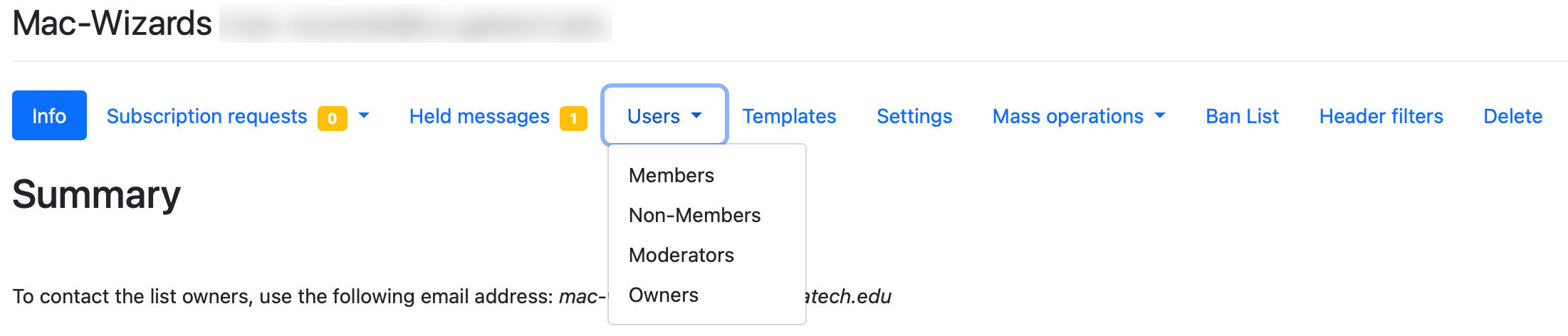
- Owners
Add additional owners by filling out the fields, and clicking 'Add owner'

TSO requires that all lists have at least 2 Owners
- Delete by finding the address that you want to remove, and click the 'Delete' button
Moderators
For lists with frequent traffic, Moderators may be useful for releasing held messages.
Add moderators by filling out the fields, and clicking 'Add moderator'

- Delete by finding the address that you want to remove, and click the 'Delete' button
- Members
- Add members by selecting Mass Subscribe in the Mass Operations menu
- Put the addresses of those you want to add, one per line, in the input box
- Select the appropriate options as needed with the checkboxes
- Pre-Verfied, Pre-Approved, and Pre-Confirm are strongly recommended
- Click the 'Subscribe users' button
- Remove members by selecting Mass Unsubscribe in the Mass Operations menu
- Again, put the addresses one per line of those that you want to remove in the input box
- Click on the Remove listed users button
- Modify a member's default delivery mode or moderation action
- Select Members from the Users dropdown
- Search to find the member that you want to modify, and click on their address
- Modify options as needed, then click the 'Save changes' button
- Add members by selecting Mass Subscribe in the Mass Operations menu
- Non-members
- Add Non-Members
- Select Non-Members from the Users dropdown
- Fill out the input boxes, and click the 'Add nonmember' button
- Remove Non-Members
- Search to find the address of the member you want delete, then click the Delete button next to their address
- Modify a Non-Members default delivery mode or moderation action
- Select Non-Members from the Users dropdown
- Search to find the non-member that you want to modify, and click on their address
- Modify options as needed, then click the 'Save changes' button
- Add Non-Members
Setting the message size to include an attachment
- Log into mailman.cc.gatech.edu
- Select the list you want to manage
- Select 'Settings' from the menu, then 'Message Acceptance'
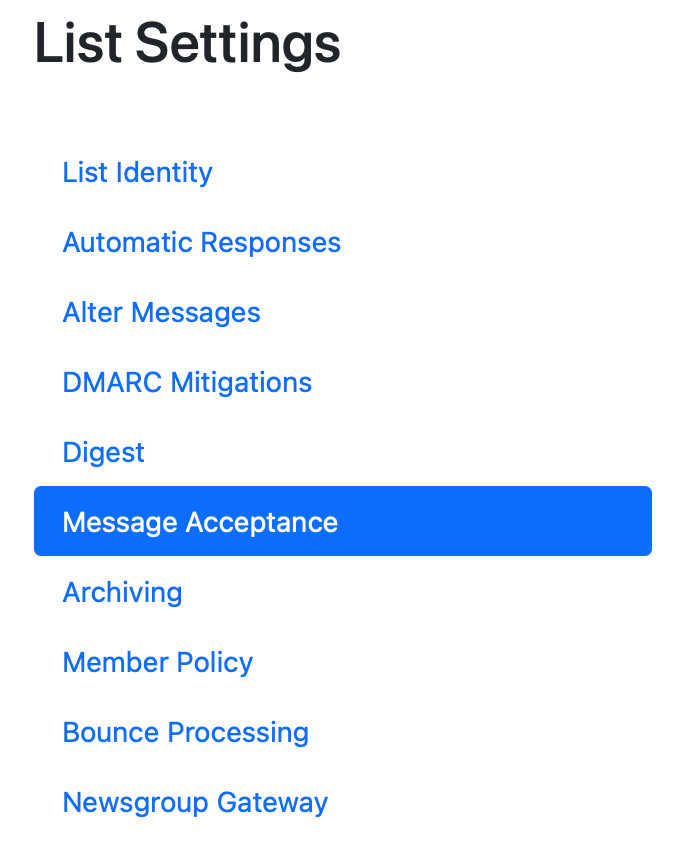
- 'Maximum message size' allows you to set limits to prevent emails with large attachments. For lists needing attachments, we suggest setting this field to '20480'. This sets the limit to 20 megabytes, which should allow for standard size documents and photos.

Editing the 'ban list' for a list
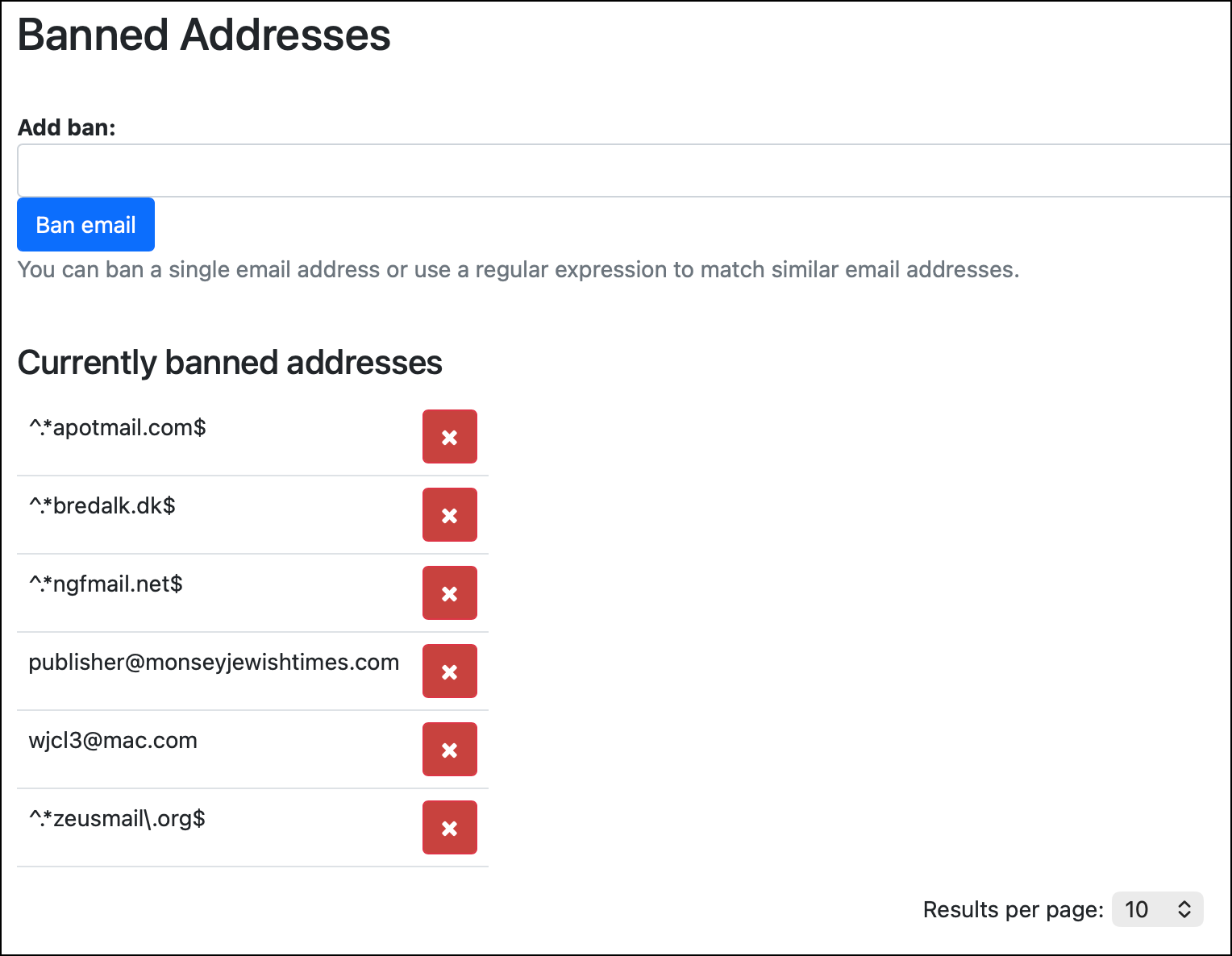
TSO suggests using Mailman's ''ban list' functionality for non-members instead of using the 'Reject' or 'Discard' actions.
- Log into mailman.cc.gatech.edu
- Select the list you want to manage
- Select 'Ban List' from the menu

Enter the email address of the user you wish to permanently reject and click 'Ban email'
Advanced users can create regex to ban specific domains.
Setting 'default actions' for a list
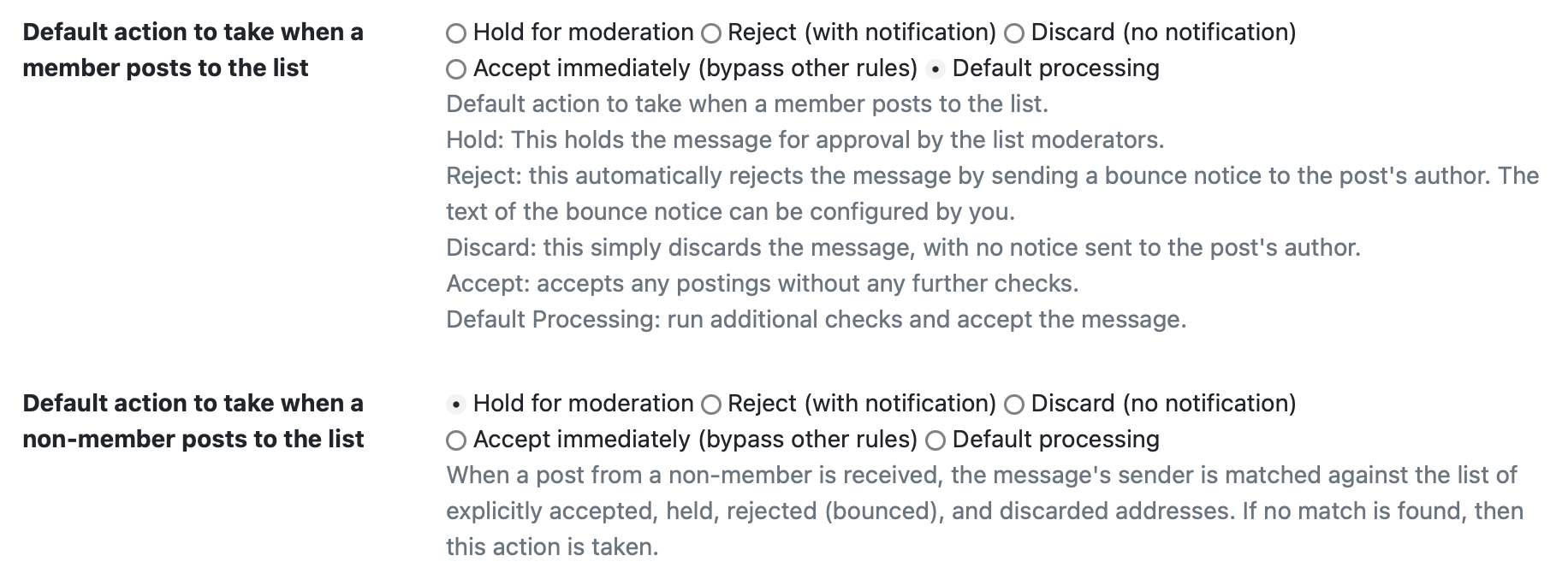
As list owner, you can set a 'default action' for emails sent by list members, and list non-members. Here are the choices and brief explanations -
Hold: This holds the message for approval by the list moderators.
Reject: this automatically rejects the message by sending a bounce notice to the post's author. The text of the bounce notice can be configured by you.
Discard: this simply discards the message, with no notice sent to the post's author.
Accept: accepts any postings without any further checks.
Default Processing: run additional checks and accept the message.
To change these settings:
- Log into mailman.cc.gatech.edu
Select the list you want to manage
Select 'Settings' from the menu, then 'Message Acceptance'
Change 'Default action to take when a member posts to the list' or 'Default action to take when a non-member posts to the list' as needed.
Some best practices:
- Announcement lists should have both member and non-member posts set to 'Hold for moderation'.
- Discussion lists should have member posts set to 'Default processing'. Non-member can stay as 'Hold for moderation'.
Back to top
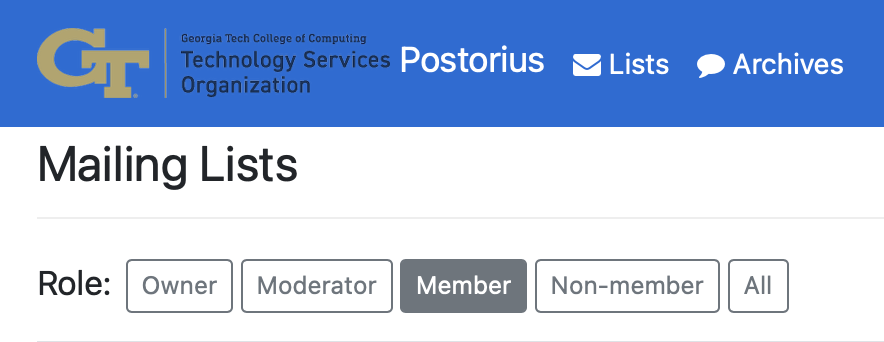
What lists am I subscribed to?
- Navigate to mailman.cc.gatech.edu.
- This page contains all the mailing lists you are associated with.
- Click 'Member' to see the lists you are a subscriber to.
What lists do I own or moderate?
- Navigate to mailman.cc.gatech.edu.
- This page contains all the mailing lists you are associated with.
- Click 'Owner' to see the lists you are an owner for, and 'Moderator' to see the lists you are a moderator for.