
Georgia Tech Windows Update & Restart Guide
Keeping Your Device Secure and Up to Date
Georgia Tech regularly deploys Windows security, quality, driver, and feature updates to ensure devices remain secure, compliant, and supported.
Updates are delivered using one of the following methods:
Windows Update for Business (Intune Update Rings) – Primary and preferred update method
Microsoft Configuration Manager (SCCM / Software Center)
Important: Windows Update is the default and recommended update experience for most Georgia Tech-managed devices. Most users will receive updates directly through Windows Update. Software Center may be used for specific update deployments when required by IT.
Regardless of the deployment method, users will receive notifications when a restart is required to complete installation.
Option 1: Windows Update (Default Method)
Most users will receive updates through Windows Update, managed by Intune Update Rings.
Updates are downloaded and installed automatically in the background. Once installation is complete, Windows will prompt the user to restart the device.
What Users Will See
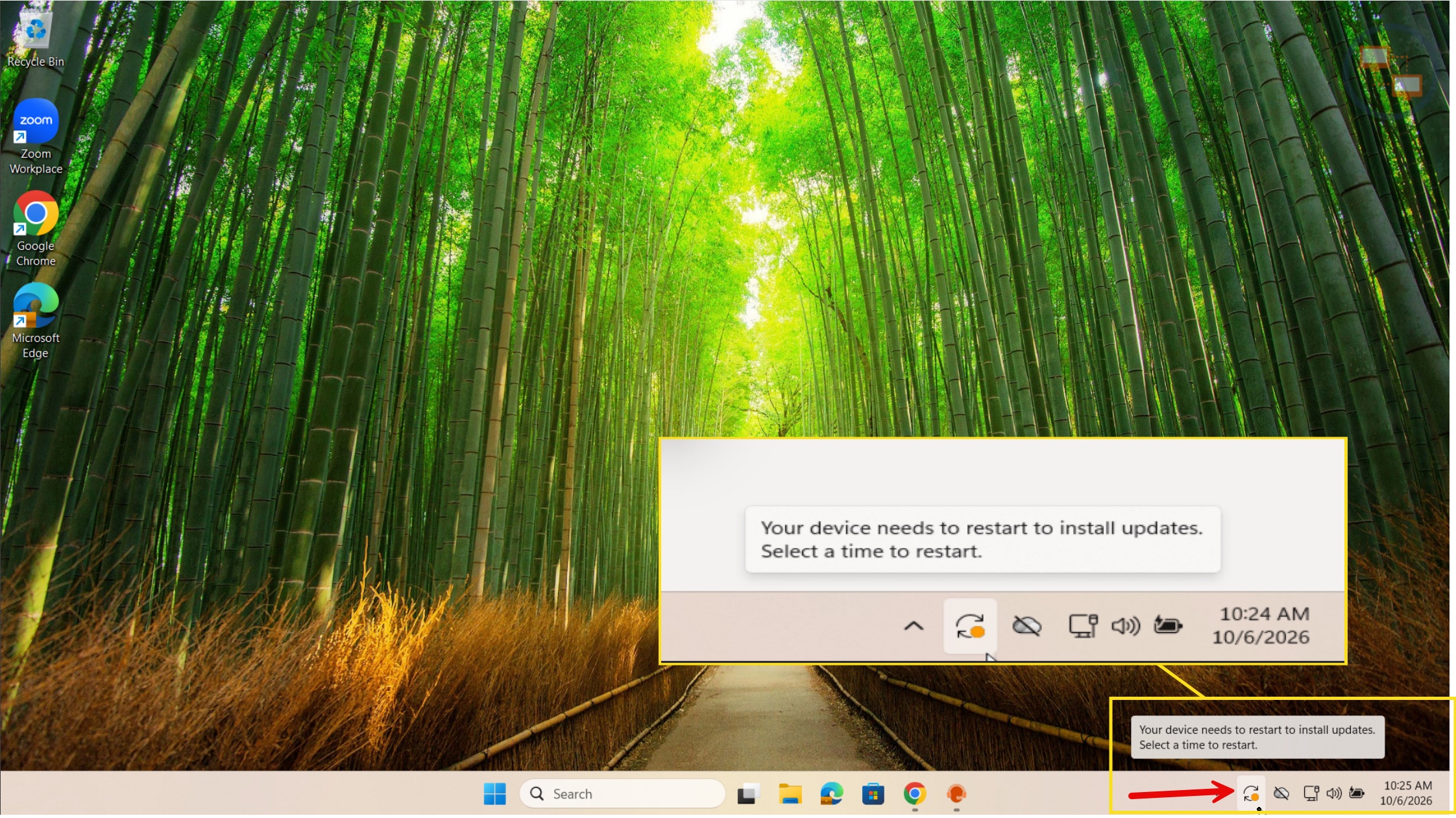
System Tray Notification
A notification may appear in the lower-right corner of the screen stating:
Your device needs to restart to install updates. Select a time to restart.
The Windows Update icon in the taskbar may also display an indicator showing that a restart is required.
Windows Update Settings
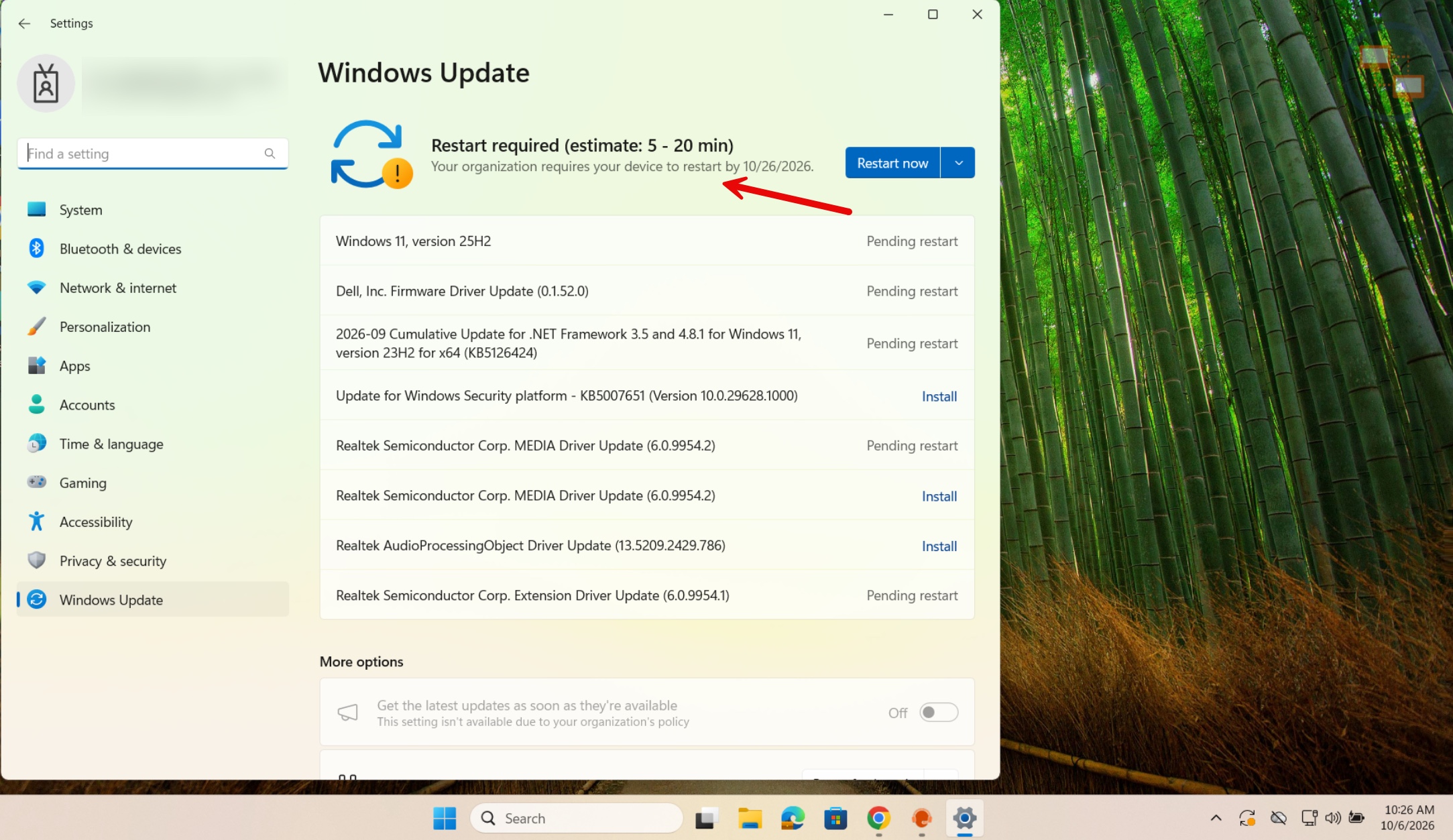
Users can navigate to:
Settings → Windows Update
and see a message similar to:
Restart required
or
Your organization requires your device to restart by a specified date.
A Restart now button will be available.
Estimated Update Time
Most monthly updates typically require 10–20 minutes after the restart begins.
Feature updates, such as Windows 11 24H2, generally require approximately 20–30 minutes to complete.
Users should plan accordingly and allow sufficient time for the update process to finish.
Option 2: Software Center (SCCM)
Some updates may be delivered through Software Center.
These deployments may include:
- Windows security updates
- Monthly quality updates
- Driver updates
- Windows feature updates (Windows 11 24H2, 25H2, etc.)
Required update deployments
Software Center Update Process
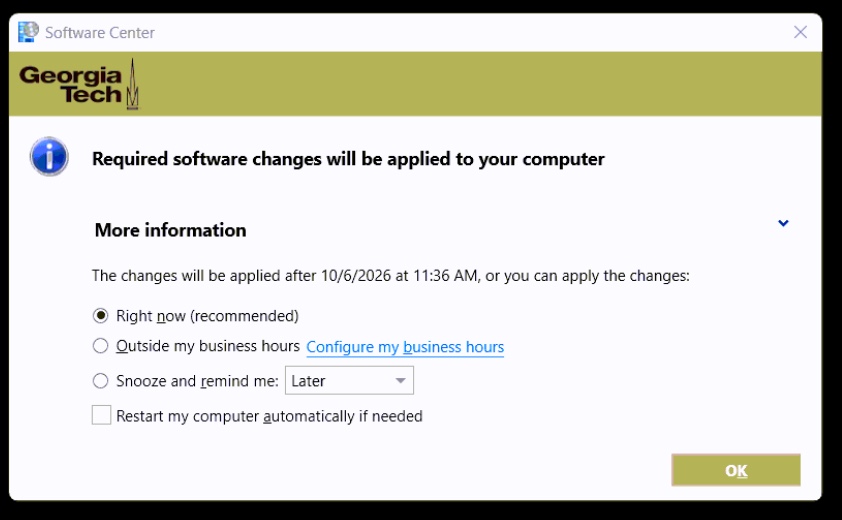
Step 1 – Required Software Changes Notification
Before installation begins, users may receive a Software Center notification:
Required software changes will be applied to your computer.
Available options may include:
- Right now (recommended)
- Outside my business hours
- Snooze and remind me later
Depending on the deployment settings, users may be able to choose when installation begins.
Step 2 – Update Available
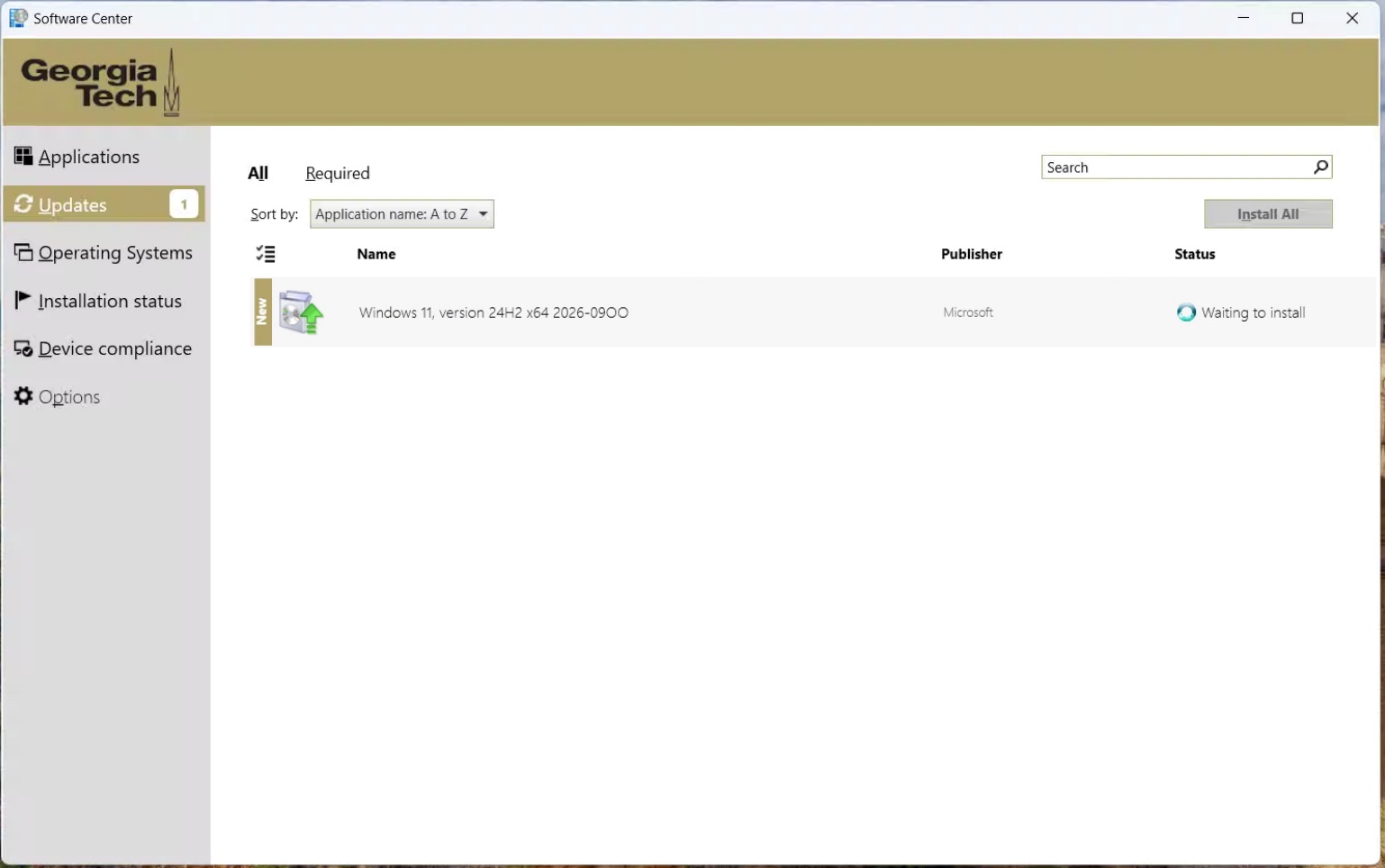
Open:
Software Center → Updates
Users may see an available update such as:
Windows 11, version 24H2 x64
The update may display a status of:
Waiting to install
At this point, the update is available and scheduled for installation.
Step 3 – Installation in Progress
Software Center will display:
Installing...
while the update is being downloaded and installed.
Feature updates such as Windows 11 24H2 may take longer than standard monthly updates.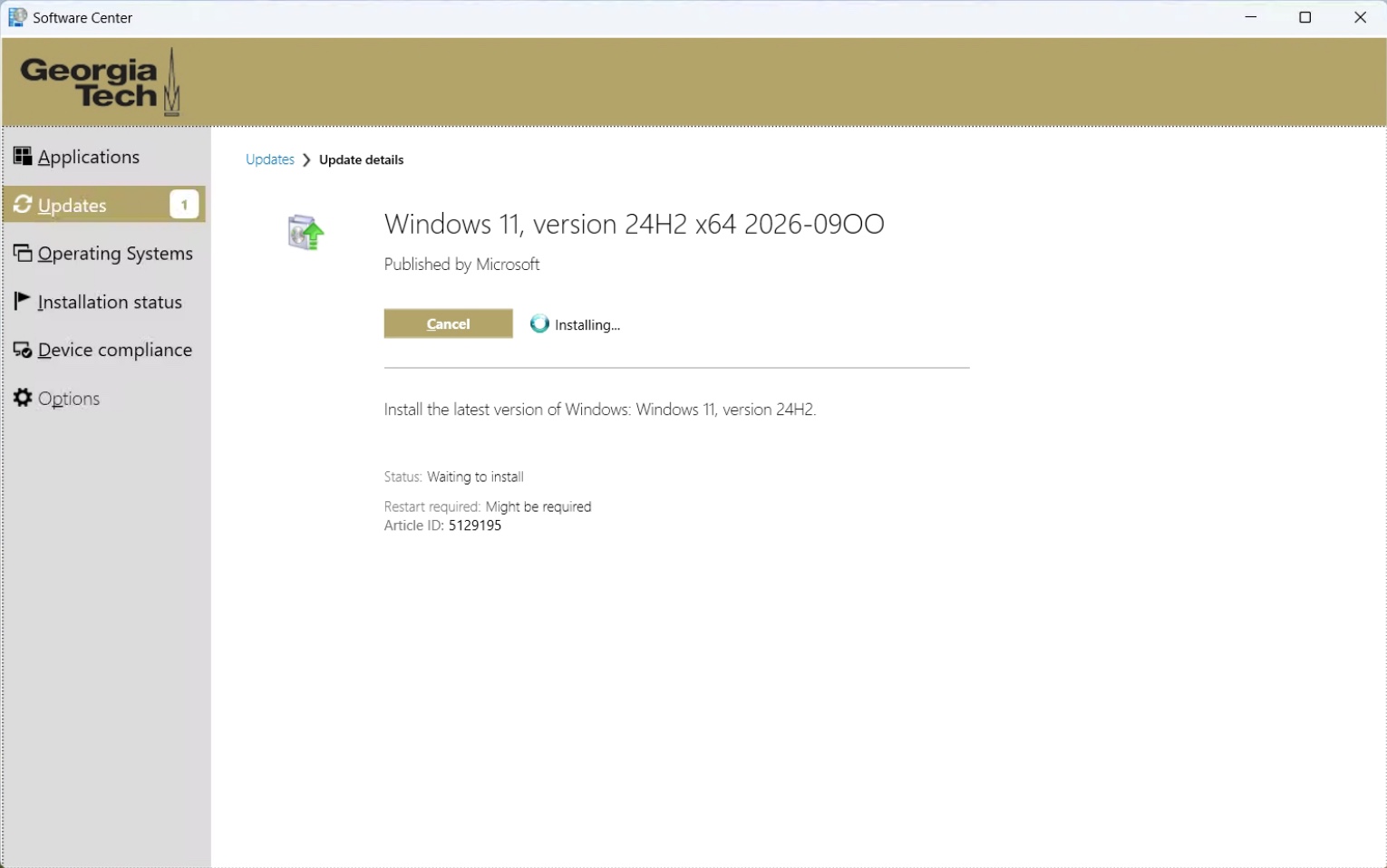
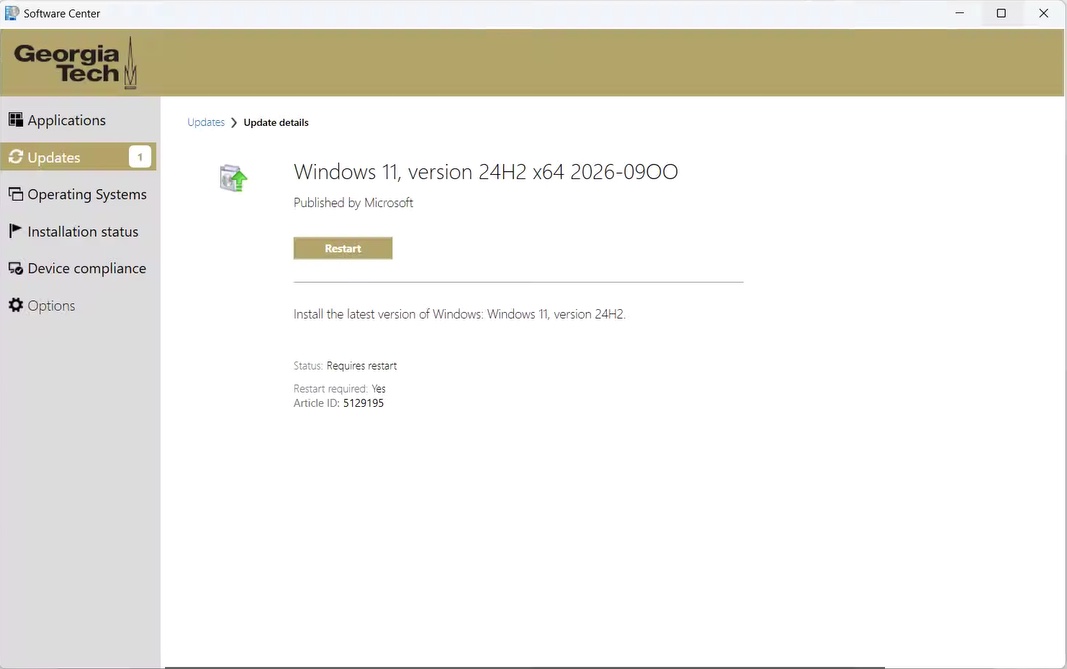
Step 4 – Restart Required
Once installation is complete, Software Center will display:
Requires restart
Users will be presented with a Restart option.
The installation is not complete until the device has been restarted.
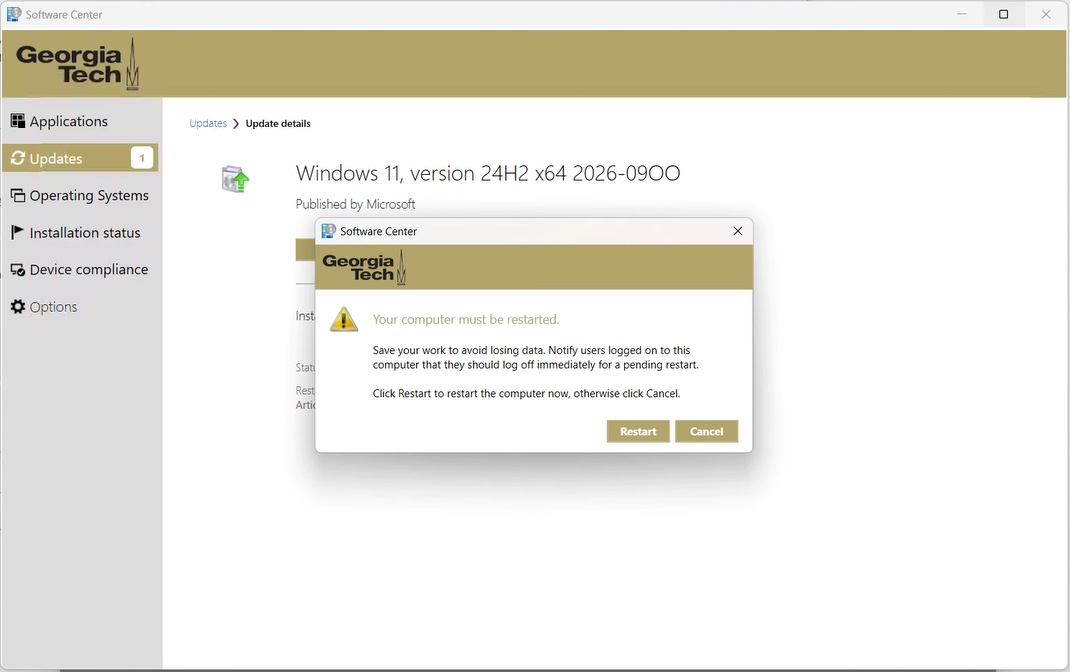
Step 5 – Restart Prompt
Software Center may display the following message:
Your computer must be restarted.
Before restarting:
Save all open work.
Close any running applications.
Select Restart.
The restart completes the installation process and finalizes the update.
Estimated Update Time
Most updates delivered through Software Center require a restart to complete installation.
Feature updates such as Windows updates typically take approximately 20–30 minutes to install and configure during the restart process.
Actual installation times may vary depending on:
- Device model and hardware specifications
- Available system resources
- Number of updates being installed
Restart Notifications and Deadlines
Restart Required
Many Windows updates install in two phases:
- Installation while Windows is running
- Final configuration during restart
Until the device is restarted:
- Updates may remain in a pending state
- Security fixes may not be fully active
- Feature updates may not complete successfully
20-Day Restart Grace Period
After an update has been installed and a restart is required, users have up to 20 days to restart their device and complete the installation.
During this period, users will continue to receive reminders through:
- Windows Update
- Software Center
- Taskbar notifications
- System tray notifications
Automatic Restart Enforcement
If the device is not restarted within the 20-day grace period, the device will automatically restart to complete the installation and maintain compliance with Georgia Tech security requirements.
To avoid unexpected interruptions, users are strongly encouraged to restart their devices as soon as practical after receiving a restart notification.
Important Reminders
Save Your Work Before Restarting
Before initiating a restart:
- Save all open documents
- Close running applications
- Ensure any critical work has been completed
Feature Updates Require Additional Time
Major Windows upgrades such as:
- Windows 11 24H2
- Windows 11 25H2
Typically, it requires 20–30 minutes to complete after the restart begins.
During this process, the device may restart more than once and display messages such as:
Working on updates
or
Updates are underway. Please keep your computer on.
Do not power off the device while the update is in progress.
Best Practice
When you receive a restart notification, restart your device at the earliest convenient opportunity. Promptly restarting ensures security updates are applied, reduces the number of reminders you receive, and helps keep your device secure and compliant.