
Adobe Creative Cloud provides access to industry-leading creative and productivity applications that support teaching, learning, research, and professional work. With your Georgia Tech Adobe license, you can:
- Create and edit documents with Adobe Acrobat Pro.
- Design graphics and illustrations using Adobe Photoshop and Adobe Illustrator.
- Edit videos with Adobe Premiere Pro.
- Create digital publications with Adobe InDesign.
- Access cloud storage and synchronize projects across devices.
- Collaborate and share creative assets with colleagues and students.
- Receive the latest updates and features through the Creative Cloud Desktop application.
Use the steps below to install Adobe Creative Cloud and any Adobe application on your Georgia Tech-managed computer.
Step 1: Open Software Center and Find Adobe Creative Cloud
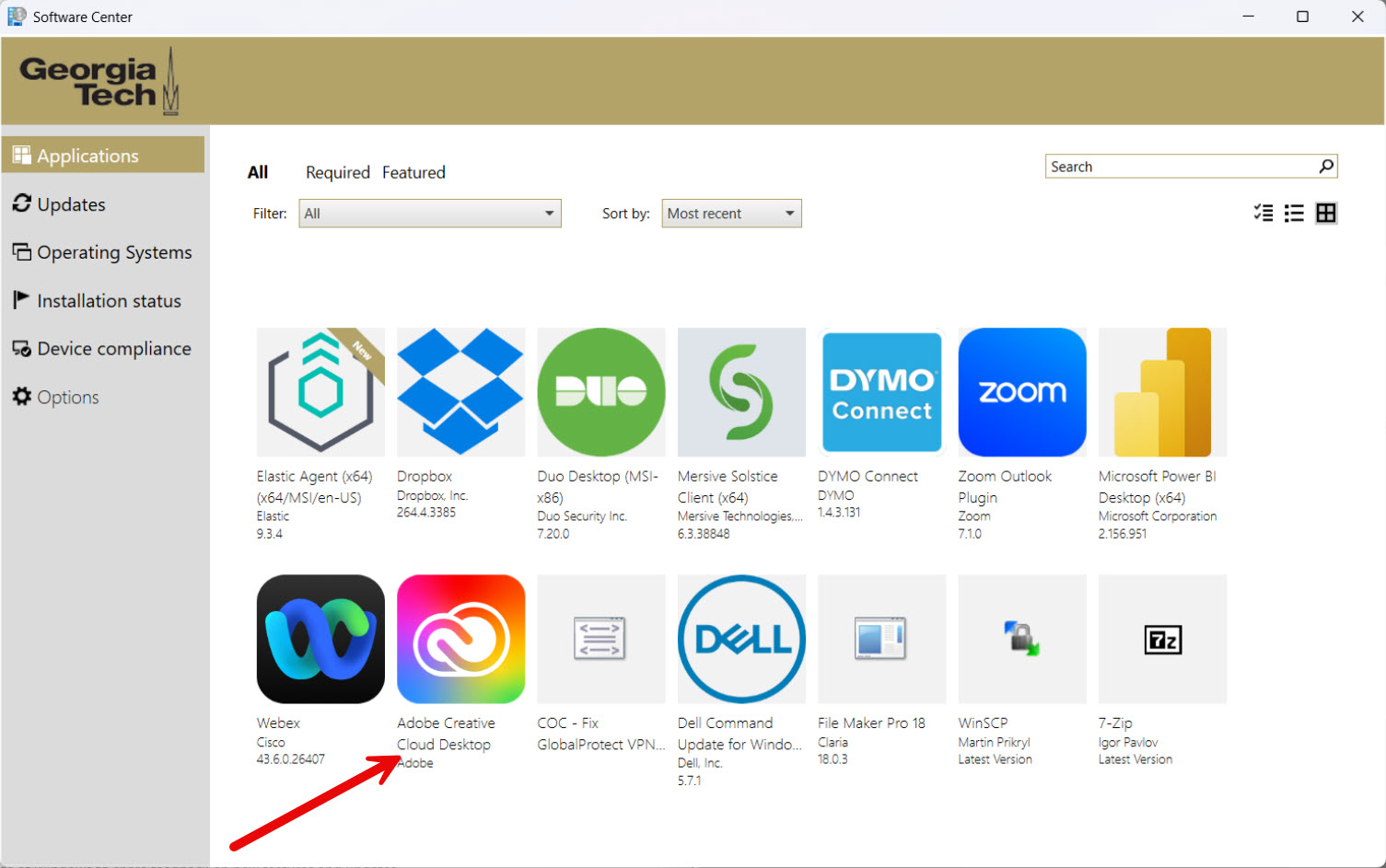
- Open Software Center from the Start Menu.
- Select Applications from the left navigation pane.
- Locate Adobe Creative Cloud Desktop in the list of available applications.
- Click the Adobe Creative Cloud Desktop icon.
Step 2: Install Adobe Creative Cloud Desktop
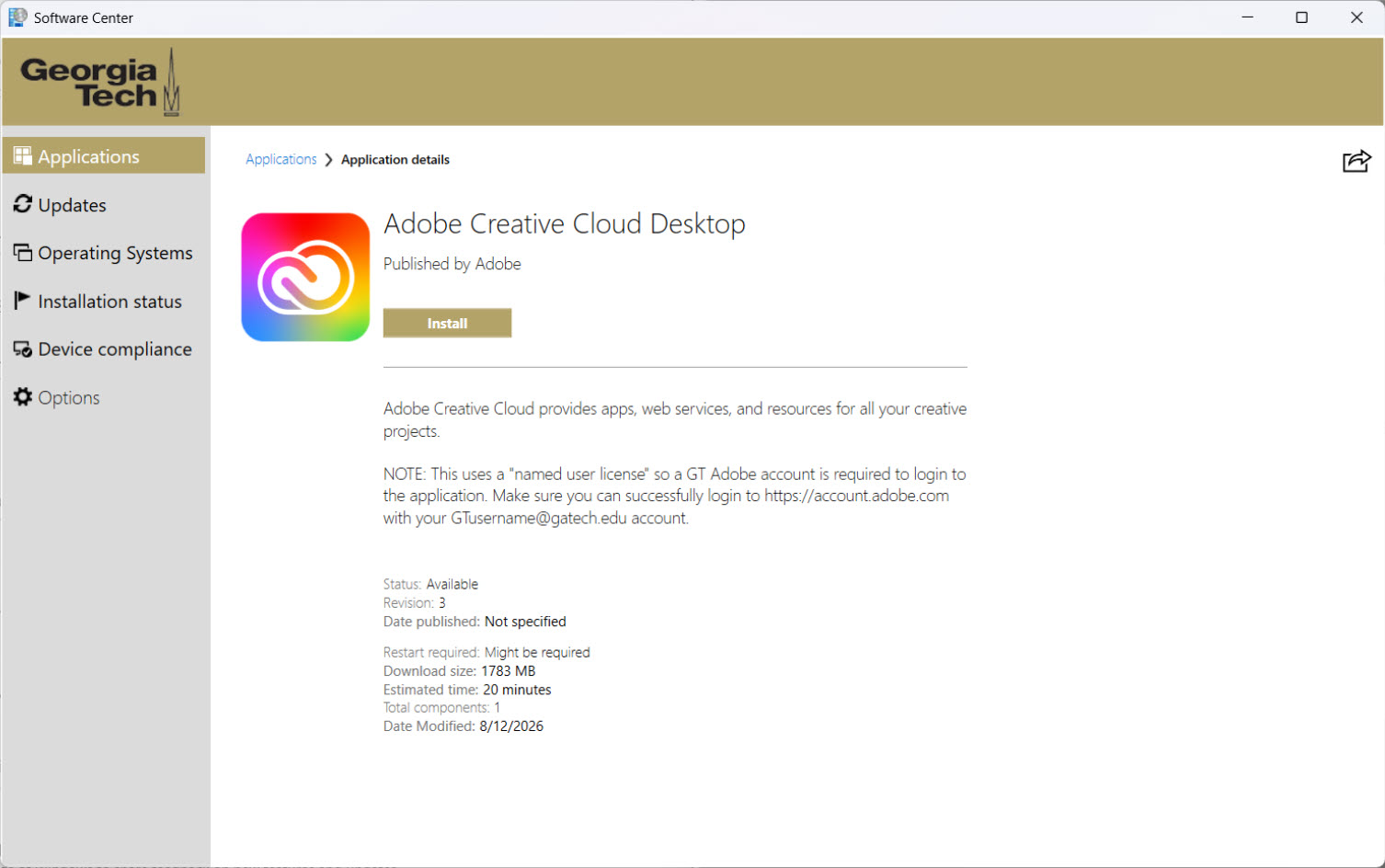
- In the Adobe Creative Cloud Desktop application page, click Install.
- Wait for the installation to complete. The installation may take several minutes.
Step 3: Sign In with Your Georgia Tech Account
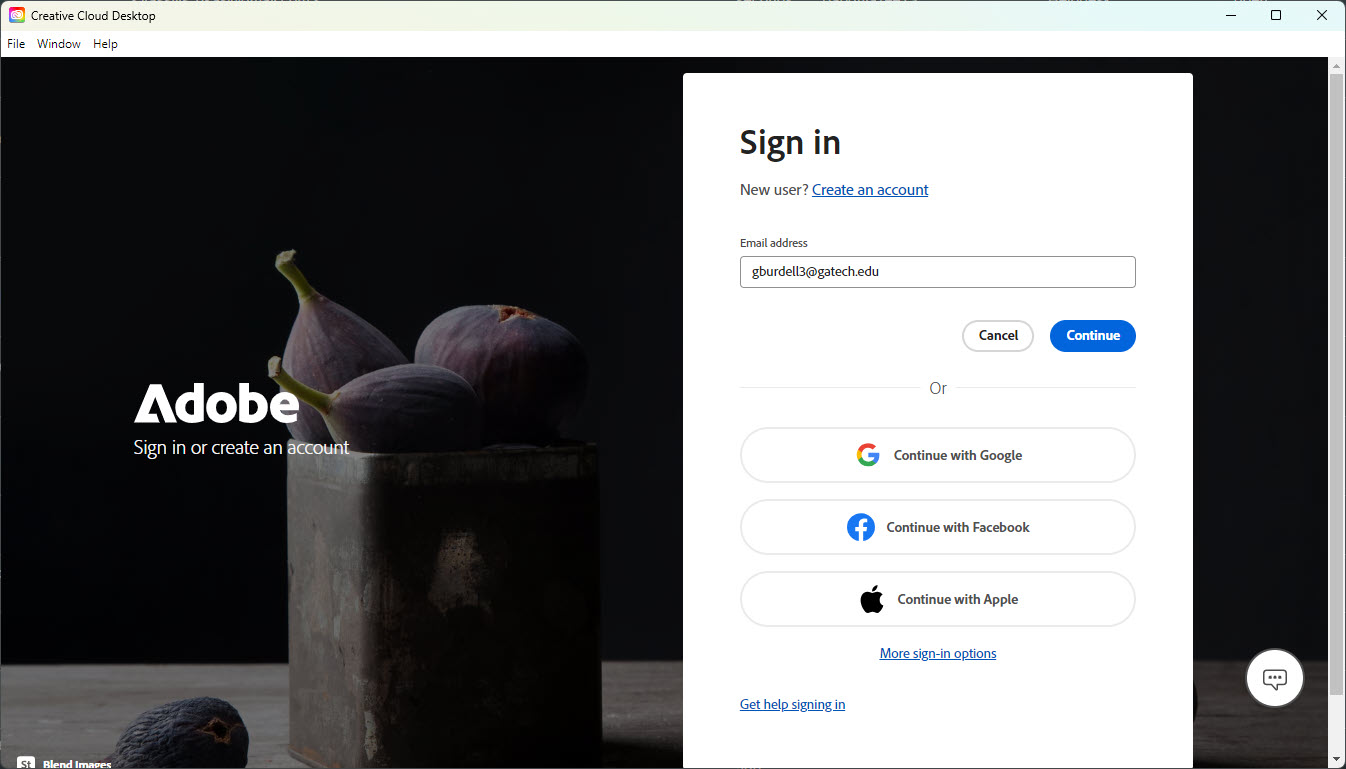
- Launch Adobe Creative Cloud Desktop after installation.
- Enter your Georgia Tech email address (GTUsername@gatech.edu).
- Click Continue.
- You will be redirected to the Georgia Tech Single Sign-On (GT SSO) page.
- Sign in with your Georgia Tech credentials and complete any required Duo/Multi-Factor Authentication (MFA) prompts.
- After successful authentication, Adobe Creative Cloud will open and your account will be activated.
Note: You must sign in using your Georgia Tech (@gatech.edu) account to access licensed Adobe applications.
Step 4: Install an Adobe Application
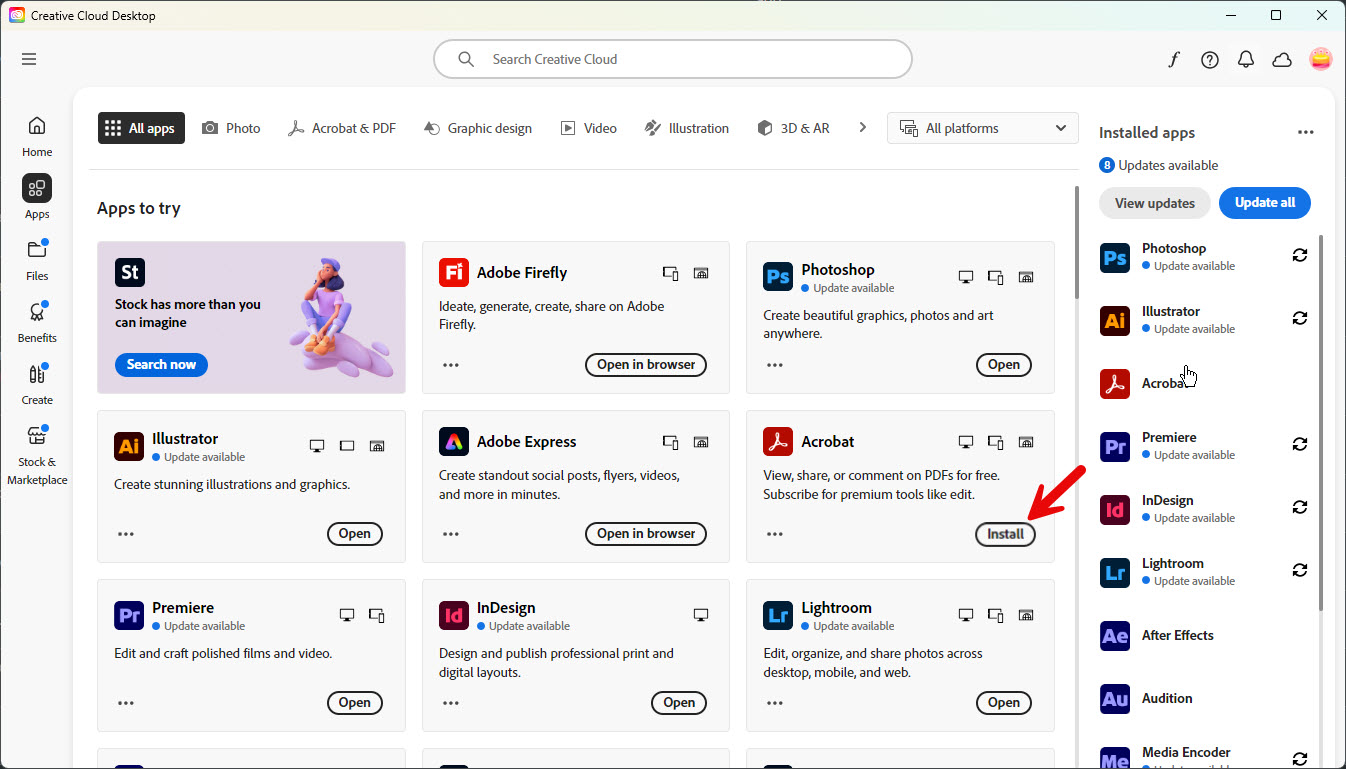
- After signing in, the Adobe Creative Cloud Desktop app will display the available Adobe applications.
- Browse the application list and select the Adobe product you need (such as Photoshop, Illustrator, Acrobat, Premiere Pro, or InDesign).
- Click Install next to the desired application.
- Wait for the installation to complete before launching the application.
Tip: Set Adobe Acrobat as the Default PDF Viewer
After installing Adobe Acrobat, you can make it the default application for opening PDF files.
- Locate any PDF file on your computer.
- Right-click the PDF file and select Open with > Choose another app.
- Select Adobe Acrobat from the list of applications.
- Check the box labeled Always use this app to open .pdf files.
- Click OK.